

Building a couple gaming setup isn’t just about buying two of everything and cramming them into one room. It’s about creating a shared space where both players can perform at their best without fighting for bandwidth, desk space, or audio dominance. Whether you’re grinding ranked matches side-by-side, running dungeons in an MMO, or streaming together, the right dual gaming station makes all the difference.
This guide covers everything from desk configurations to cable management nightmares, hardware selection to RGB coordination. You’ll learn how to maximize your space and budget while avoiding the most common mistakes couples make when building dual setups. No fluff, just practical advice from real-world experience.
Key Takeaways
- A couple gaming setup maximizes shared gaming experiences by eliminating conflicts over equipment, schedules, and space while strengthening relationships through collaborative play and teamwork.
- Proper space planning (8-10 feet of wall length, 3-4 feet depth minimum) and realistic budget allocation (40-50% to hardware, 20-25% to displays, 15-20% to furniture) prevent costly mistakes before purchasing.
- Side-by-side desk configurations work best for most couples, offering easy communication and shared cable management, while L-shaped or face-to-face options suit different gaming styles and room constraints.
- Closed-back headsets prevent audio bleed between simultaneous gaming sessions, enabling independent voice chat and immersive gameplay without interference.
- Wired Ethernet connections significantly outperform WiFi for lag-free couple gaming, especially when streaming or downloading large game updates simultaneously.
- RGB synchronization across both stations creates visual cohesion—match brands for true software-level sync, or use complementary color schemes to reflect individual personality while maintaining aesthetic unity.
Why Couples Who Game Together Stay Together
Shared hobbies create stronger bonds. Gaming together amplifies that effect because it requires communication, teamwork, and mutual respect, skills that translate directly to relationship health.
A couple gaming setup transforms gaming from a solo activity into a shared experience. Co-op campaigns become date nights. Competitive matches turn into friendly rivalries. Even when playing different games in the same room, there’s a sense of companionship that solo gaming can’t replicate.
Beyond the emotional benefits, dual setups offer practical advantages. Scheduling becomes easier when both partners have dedicated stations. No more fighting over who gets the main PC or TV. No more waiting for the other person to finish their session. Everyone gets their own optimized space, which reduces friction and increases actual playtime.
The investment in a proper dual setup pays dividends in relationship satisfaction. Studies show that couples who share leisure activities report higher relationship quality. Gaming checks that box while also providing stress relief, mental stimulation, and a shared social circle through online communities.
Planning Your Couple Gaming Setup: Space and Budget Considerations
Assessing Your Available Space
Before buying anything, measure your room. Not just the wall length, measure depth, account for door swing, window placement, and HVAC vents. A dual gaming setup requires more space than you think.
Minimum viable space for side-by-side desks is about 8-10 feet of wall length and 3-4 feet of depth. That assumes standard 24-inch monitors and compact desk arrangements. If either player runs dual monitors or 32+ inch displays, add another 2-3 feet of width.
Consider traffic flow. Can someone walk behind both chairs without one person having to scoot in? Is there clearance for both chairs to recline? These details matter during marathon gaming sessions.
Vertical space counts too. Wall-mounted monitor arms, shelving for consoles or accessories, and cable raceways all require wall clearance. Measure from floor to ceiling and note any obstacles like wall-mounted AC units or light fixtures.
Setting a Realistic Budget for Two Setups
Dual setups don’t mean doubling your dream budget. Smart allocation makes a huge difference. Here’s a realistic breakdown for different budget tiers in 2026:
Budget Tier ($1,500-$2,500 total):
- Two mid-range gaming PCs or current-gen consoles
- Single monitors (24-27 inch, 1080p 144Hz)
- Basic gaming chairs
- Shared desk or IKEA hack setup
- Wired peripherals
- Single router (existing home internet)
Mid Tier ($2,500-$5,000 total):
- Two solid gaming PCs (RTX 4060/RX 7600 tier GPUs) or premium consoles with accessories
- Quality monitors (27 inch, 1440p 165Hz)
- Proper gaming chairs with lumbar support
- Dedicated desks for each station
- Quality wireless peripherals
- Mesh Wi-Fi system or wired Ethernet drops
Enthusiast Tier ($5,000-$10,000+ total):
- High-end gaming PCs (RTX 4080/4090 tier or latest equivalent)
- Premium displays (32 inch, 1440p/4K 240Hz, or dual monitor setups)
- Herman Miller or Secretlab Titan chairs
- Custom desk solutions or premium standing desks
- Streaming equipment (dual PCs, capture cards, broadcast mics)
- Dedicated network infrastructure
The sweet spot for most couples is the mid-tier range. It provides excellent performance without diminishing returns. Allocate 40-50% of budget to PCs/consoles, 20-25% to displays, 15-20% to desks/chairs, and 10-15% to peripherals and networking.
Choosing the Right Desks for a Dual Gaming Station
Side-by-Side Desk Configurations
Side-by-side arrangements are the most popular couple gaming setup configuration. Both players face the same direction, typically toward a wall, with minimal distance between stations.
Advantages:
- Easy communication without turning around
- Shared wall space for cable management
- Simple to synchronize RGB lighting
- Both players have similar viewing angles for watching each other’s screens
Desk recommendations for side-by-side:
- Two separate 60-inch desks (IKEA Bekant, Autonomous SmartDesk Core)
- Single 96+ inch continuous desktop on dual legs (IKEA Karlby countertop on Alex drawers)
- Matching standing desks for height adjustment (Flexispot E7 Pro, Uplift V2)
Leave 2-4 inches between separate desks to run cables down the gap. This creates a natural cable channel without visible clutter.
L-Shaped and Corner Desk Solutions
L-shaped configurations work well in corner spaces or smaller rooms where wall length is limited. One player takes the long side, the other takes the short return.
Advantages:
- Maximizes corner space efficiency
- Creates defined zones for each player
- More total desk surface than equivalent straight desks
- Natural separation for focused gaming
Disadvantages:
- Less symmetrical (one person gets more space)
- Harder to watch each other’s screens
- RGB sync looks less cohesive
- Usually requires one person to face away from windows
L-shaped setups work best when players have different gaming styles, one competitive player who needs isolation, one casual player who doesn’t mind the smaller station.
Face-to-Face Setup Options
Face-to-face configurations place desks on opposite sides of the room or opposite sides of the same desk island. Players look at each other while gaming.
Advantages:
- Easy eye contact for communication
- Completely separate gaming zones
- Works well for streaming couples (can frame both in wide shot)
- Natural lighting options from windows
Disadvantages:
- Requires more floor space
- Monitor glare issues if facing windows
- Can’t easily see each other’s screens
- Doubles cable management complexity
This configuration suits couples who play different game genres or need visual separation for focus. It’s also popular among content creators who want symmetrical camera angles for streams.
Essential Gaming Hardware for Two Players
PC vs Console: Matching or Mixing Platforms
Matching platforms simplifies everything. Two PCs or two PS5s means shared knowledge, easier troubleshooting, and guaranteed cross-play compatibility for every game.
But mixing platforms isn’t a dealbreaker. PC/console hybrid setups work if you understand the trade-offs:
PC + Console combinations work well for:
- Different game preferences (strategy/MMO on PC, sports/fighting games on console)
- Budget constraints (one high-end PC, one current-gen console costs less than two PCs)
- Exclusive title access (PlayStation exclusives + PC game library)
Dual PC setups excel at:
- Competitive gaming where both players need high refresh rates and low input lag
- Content creation and streaming
- Modding communities and early access games
- Maximum customization and upgrade paths
Dual console setups excel at:
- Plug-and-play simplicity
- Lower total cost of entry
- Exclusive multiplayer titles
- Living room integration
In 2026, cross-play support has expanded significantly, but platform restrictions still exist for some competitive titles. Check your most-played games before committing to mixed platforms.
Monitor Selection and Dual Display Strategies
Monitor selection depends on primary game genres. Don’t buy matching displays just for aesthetics if you play completely different game types.
For competitive FPS/fighting games:
- 24-27 inch displays
- 1080p or 1440p resolution
- 240Hz+ refresh rate
- 1ms response time
- Examples: BenQ Zowie XL2566K, ASUS ROG Swift PG27AQN
For single-player/RPG/strategy:
- 27-32 inch displays
- 1440p or 4K resolution
- 144-165Hz refresh rate
- IPS panel for color accuracy
- Examples: LG 27GP850-B, Dell S2722DGM
For immersive gaming:
- 34+ inch ultrawide displays
- 3440×1440 resolution
- 144Hz+ refresh rate
- Curved panel
- Examples: Samsung Odyssey G7, Alienware AW3423DWF
Dual monitor setups per person make sense for streamers or multitaskers. Main gaming display + secondary monitor for Discord, guides, stream chat, or music. Mount the secondary vertically to save desk width.
Many professional players use specific monitor configurations optimized for their game. It’s worth checking if you’re serious about competitive play.
Gaming Chairs That Won’t Expensive (Times Two)
Buying two premium gaming chairs hurts the budget. Here’s how to prioritize:
Spend more if either person:
- Games 4+ hours daily
- Has existing back or neck issues
- Works from home at the same desk
- Weighs over 200 lbs (weight capacity matters)
Budget options ($150-$300 per chair):
- Secretlab Titan Evo 2022 (refurbished)
- IKEA Matchspel
- Corsair TC100 Relaxed
- Herman Miller Sayl (used market)
Mid-range options ($300-$500 per chair):
- Secretlab Titan Evo 2024
- Razer Iskur V2
- Noblechairs Hero
- Steelcase Series 1 (used/refurb)
Premium options ($500-$1,200+ per chair):
- Herman Miller Embody Gaming Edition
- Secretlab Titan Evo Plus
- Steelcase Gesture
- Herman Miller Aeron (used market)
Ergo tip: If budget allows only one premium chair, give it to whoever games longer hours or has physical issues. The other person can upgrade later.
Consider buying mismatched chairs if you have different body types. A 5’4″ person and a 6’2″ person need different chair sizes regardless of brand aesthetics.
Optimizing Audio for Shared Gaming Spaces
Headset Solutions to Avoid Audio Bleed
Two people gaming in one room means two audio sources. Open-back headphones leak sound badly enough that your partner hears your game audio and voice chat. That’s a non-starter.
Closed-back headsets prevent audio bleed:
- HyperX Cloud Alpha Wireless
- SteelSeries Arctis Nova Pro Wireless
- Logitech G Pro X 2 Lightspeed
- Beyerdynamic MMX 300 (Gen 2)
All four isolate sound well enough that both players can be in intense voice chat simultaneously without cross-contamination. The wireless options eliminate cable clutter, which matters more with two setups.
Microphone considerations:
- Boom mics work fine for most couples since you’re not in each other’s pickup pattern
- If streaming together, use directional cardioid patterns pointed away from each other
- Push-to-talk helps during different gaming sessions (one person in quiet single-player, other in loud multiplayer)
Avoid: Gaming headsets with sidetone (mic monitoring) cranked too high. You’ll hear your own voice plus your partner’s actual voice, creating echo confusion.
Speaker Placement for Co-Op Sessions
Speakers make sense for co-op gaming where you’re playing the same game together. Music games, racing titles, fighting games, and couch co-op ports all benefit from shared audio.
Desktop speaker placement for side-by-side setups:
- Position speakers between both stations, angled inward
- Place at ear height when seated (use monitor stands or speaker stands)
- Maintain equilateral triangle: two speakers + listening position midpoint
Recommended desktop speakers:
- Budget: Edifier R1280DBs, Creative Pebble Plus
- Mid-range: Audioengine A2+, PreSonus Eris E3.5
- Premium: KEF LSX II LT, Audioengine HD3
Soundbar alternative:
Mount a gaming soundbar above the center point between monitors. Models like the Creative Stage V2 or Razer Leviathan V2 Pro provide decent audio for co-op sessions without the footprint of separate speakers.
Switch between headsets and speakers using audio output switching in Windows/macOS or physical audio interface knobs. Most gaming headsets with USB dongles make switching seamless.
Cable Management and Power Solutions for Dual Setups
Cable management separates amateur setups from clean, professional-looking stations. With two complete gaming rigs, cable chaos multiplies fast.
Power requirements calculation:
Each gaming station typically needs:
- PC/console: 1 outlet
- Monitor(s): 1-2 outlets
- Peripherals/charging: 1 outlet
- Desk accessories: 1 outlet
Total: 4-5 outlets per person, or 8-10 outlets for dual setup.
Power solution options:
- Two separate surge protectors (one per station): CyberPower CSP600WSU or Tripp Lite TLP1008TEL
- Single high-capacity power strip: APC P11U2 (11 outlets, 2 USB)
- UPS for both setups: CyberPower CP1500PFCLCD (provides battery backup during outages)
Mount power strips under desk surfaces using command strips or screw mounts. This keeps power accessible but hidden.
Cable routing strategies:
-
Vertical cable spine: Run all cables down one desk leg using spiral cable wrap or Velcro cable ties, then across the floor to wall outlets.
-
Under-desk cable trays: IKEA Signum or Amazon Basics cable management trays attach under desk surfaces. Route all cables through the tray horizontally, then drop vertically at one point.
-
Cable raceways on walls: For wall-mounted setups or when desks sit against walls, use J Channel raceways to run cables along baseboards.
-
Desk grommets: Drill cable pass-through holes in desk surfaces (2-3 inches diameter). Use rubber grommets to finish the edges. Route all cables down through grommets to under-desk management.
Color-code cables if both setups use similar hardware. Use colored cable sleeves, cable combs, or colored Velcro ties to distinguish Player 1 vs Player 2 cables. This saves massive troubleshooting time when something goes wrong.
Label everything. Use a label maker to tag both ends of every cable: “P1 Monitor Power,” “P2 Keyboard USB,” etc. Future you will appreciate this during upgrades or moves.
For those with experience in creative setups, some retro gaming station ideas use similar cable management techniques that translate well to modern dual configurations.
Lighting and Aesthetics: Creating a Cohesive Look
RGB Synchronization Across Two Stations
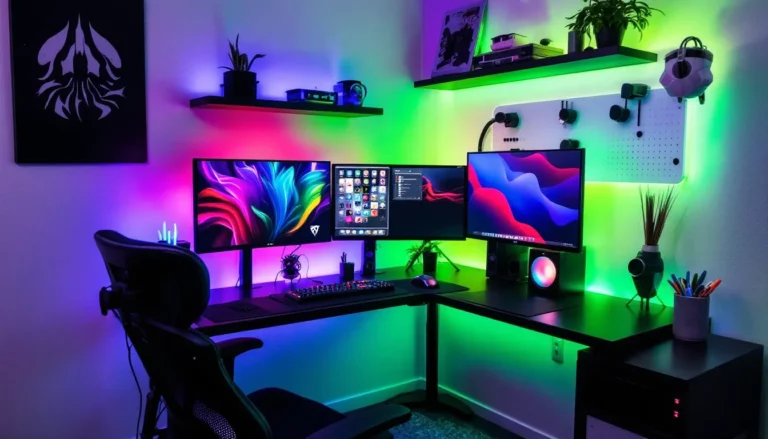
RGB lighting can unify two separate gaming stations into one cohesive setup, or make them look like a unicorn exploded. Synchronization is key.
Software ecosystems to match:
- ASUS Aura Sync: Motherboards, GPUs, peripherals, RAM, case fans
- MSI Mystic Light: Similar ecosystem for MSI components
- Corsair iCUE: Strong peripheral support, okay component integration
- Razer Chroma: Best peripheral ecosystem, limited component support
- SignalRGB: Third-party software that unifies most RGB brands
For true synchronization across both setups, build both PCs using the same motherboard brand or commit to one peripheral ecosystem. Mixing brands means manual color matching, which drifts over time.
Synchronization strategies:
-
Matched colors, different effects: Both setups use the same color palette (example: purple/cyan), but Player 1 runs wave effect while Player 2 runs breathing effect. Unified but individualized.
-
Mirrored effects: Both setups run identical RGB profiles. Looks stunning in photos and creates perfect symmetry.
-
Complementary colors: Player 1 uses warm colors (red/orange/yellow), Player 2 uses cool colors (blue/cyan/purple). Creates visual balance without exact matching.
-
Reactive lighting: Both setups use audio-reactive RGB that responds to game sounds or music. Naturally synchronizes during co-op sessions.
Bias lighting behind monitors reduces eye strain during long sessions. LED strips mounted on monitor backs (Philips Hue Play, Govee Envisual) should match or complement desk RGB. Set bias lighting to neutral white (6500K) for competitive gaming, switch to colored modes for casual sessions.
Matching vs Complementary Color Schemes
Matching everything looks clean but boring. Complementary schemes add personality.
Matching approach:
- Same desk color/material
- Same chair model (maybe different colors)
- Same monitor brand and size
- Identical peripherals
- Synchronized RGB profiles
Result: Ultra-clean, symmetrical, Instagram-ready. Works well for content creators who want a branded look.
Complementary approach:
- Different desk styles that share one element (same wood tone, different shapes)
- Different chairs in coordinating colors
- Different monitors with same specs
- Different peripherals from same brand family
- Related but distinct RGB schemes
Result: Personalized stations that still feel intentional. Better for couples with different tastes.
Wall decor and theming:
Shared posters, LED neon signs, floating shelves with collectibles, or matching wall-mounted controllers all tie dual setups together visually. Keep decorations between the setups or in shared sightlines to reinforce the coupled aesthetic.
Lighting temperature matters. Cool white (5000-6500K) enhances focus and looks modern. Warm white (2700-3000K) feels cozy but can distort monitor colors. Most couples prefer cool white task lighting with warm accent lighting.
Internet and Networking Requirements for Lag-Free Gaming
Two simultaneous gaming sessions demand serious bandwidth and proper network infrastructure. You can’t both game competitively on base ISP equipment.
Bandwidth requirements:
Modern online games use 1-3 Mbps per player for gameplay data, but total bandwidth needs include:
- Game downloads and updates: 50-100 GB patches are common
- Voice chat: 0.5-1 Mbps
- Streaming video (if running on secondary monitor): 5-25 Mbps depending on quality
- Background downloads, system updates, cloud saves
Minimum recommended: 100 Mbps download, 10 Mbps upload. Comfortable range: 300+ Mbps download, 20+ Mbps upload. If streaming, add 10-15 Mbps upload per stream.
Upload speed matters more than most ISPs advertise. Asymmetric connections (fast download, slow upload) cause problems when both players are in voice chat or uploading gameplay clips. Check actual upload speeds, not just download.
Router quality absolutely matters:
ISP-provided gateway routers struggle with dual gaming loads. They have weak processors, limited RAM, and poor QoS (Quality of Service) implementations.
Upgrade to a gaming-focused router:
- Budget: TP-Link Archer AX55 (WiFi 6, good QoS)
- Mid-range: ASUS RT-AX86U Pro (WiFi 6, dedicated gaming port)
- Premium: ASUS GT-AXE16000 or Netgear Nighthawk RAXE500 (WiFi 6E, multi-gig ports)
Alternatively, use a mesh WiFi system if your gaming room is far from the modem:
- ASUS ZenWiFi AX (XT8)
- Netgear Orbi RBKE963
- TP-Link Deco XE75
Wired Ethernet crushes WiFi for gaming. If at all possible, run Ethernet cables to both gaming stations. Powerline adapters (TP-Link AV2000) work as a last resort but aren’t as stable as direct Ethernet.
QoS configuration:
Enable QoS in router settings and prioritize gaming traffic. Assign static IP addresses to both gaming PCs/consoles, then create QoS rules giving those IPs highest priority. This prevents one person’s 100 GB game download from spiking the other person’s ping.
Most gaming routers have preset profiles for this. ASUS routers call it “Adaptive QoS,” Netgear calls it “QoS” under Advanced settings.
Reduce bufferbloat:
Bufferbloat causes lag spikes when network buffers overflow. Test at DSLReports Speed Test. If you get bufferbloat grades below B, enable SQM (Smart Queue Management) or cake queueing in your router if available.
Hardware configurations for network-intensive setups are frequently covered by sources like Tom’s Hardware, which provides detailed router benchmarks and network optimization guides.
Streaming Together: Equipment Upgrades for Content Creator Couples
Streaming as a couple adds complexity but also amplifies entertainment value. Viewers love the dynamic between gaming couples.
Dual streaming approaches:
- Separate streams (each person streams independently):
- Requires: Two streaming PCs or powerful single PCs with GPUs capable of encoding
- Software: Two instances of OBS Studio or Streamlabs
- Advantage: Independent schedules, different game genres, separate audiences
- Disadvantage: Split viewership, no collaboration growth
- Single combined stream:
- Requires: One powerful streaming PC, dual capture cards (if using gaming consoles), video mixer software
- Software: OBS Studio with multi-source scenes
- Advantage: Combined viewership, couple dynamic is content itself, higher average viewer count
- Disadvantage: Must coordinate schedules, shared revenue
Equipment requirements for dual streaming:
Cameras:
- Budget: Two Logitech C920 webcams
- Mid-range: Two Logitech StreamCam or Razer Kiyo Pro
- Premium: Two Sony ZV-E10 or Canon M50 Mark II with capture cards
Position cameras to frame each person individually or use one wide-angle camera positioned between stations to capture both.
Microphones:
Boom arm microphones create cleaner audio than headset mics for streaming.
- Budget: Two Fifine K669 or TONOR TC30
- Mid-range: Two Elgato Wave:3 or HyperX QuadCast S
- Premium: Two Shure SM7B with Cloudlifter preamps (requires audio interface)
Place microphones on opposite sides of the room to minimize cross-pickup. Use cardioid or supercardioid polar patterns.
Capture cards (if streaming console gameplay):
- Elgato HD60 S+ (1080p60, per console)
- AVerMedia Live Gamer Portable 2 Plus (1080p60)
- Elgato 4K60 Pro MK.2 (4K60, internal PCIe card)
If both streaming from PCs, skip capture cards and use OBS window capture or game capture sources.
Lighting:
Two-point lighting per person creates professional streams:
- Key light: Elgato Key Light or Neewer 660 LED panel
- Fill light: Softer LED panel or ring light
Position key lights at 45-degree angles in front of each person. Fill lights go opposite to reduce shadows.
Stream layout ideas for couples:
- Side-by-side gameplay windows with dual webcams below
- Picture-in-picture: One main gameplay window with second player in corner
- Splitscreen racing/fighting games with single shared gameplay window
- Reactive cams: Gameplay fullscreen with webcams that appear during clutch moments
VTuber couples can use dual avatar setups with software like VTube Studio or Live2D.
Network considerations:
Streaming adds significant upload bandwidth demands. 1080p60 streams at 6000 kbps use about 6 Mbps upload. Two simultaneous streams need 12 Mbps upload minimum, but 20+ Mbps recommended for stability.
Use dedicated streaming PCs if possible. Gaming + encoding on single PC works with modern GPUs (RTX 4070 or higher, RX 7800 XT or higher) using NVENC or AV1 encoding, but dedicated streaming PCs provide better performance headroom.
For couples interested in building cost-effective secondary streaming machines, compact builds similar to mini PCs for gaming can handle encoding tasks without taking up extra desk space.
Conclusion
Building a couple gaming setup requires more planning than a solo station, but the payoff is worth it. You’re not just creating two gaming spaces, you’re building a shared environment that supports both individual performance and collaborative experiences.
Start with the fundamentals: measure your space, set a realistic budget, and choose a desk configuration that fits your room and gaming styles. Invest in proper networking infrastructure early because lag ruins relationships faster than any raid wipe. Prioritize the hardware that matters most for your primary games, and don’t blow the budget on matching aesthetics if it means sacrificing performance.
Cable management and lighting seem like finishing touches, but they transform a functional setup into something you’ll both actually want to spend time in. And if you’re streaming together, the incremental investment in quality audio and video equipment pays off in production value and viewer retention.
The best couple gaming setup isn’t the most expensive one. It’s the one that fits your space, serves your game library, and makes you both want to fire up another session together. Build it right, and you’ll have a gaming station that grows with your relationship and your skills.