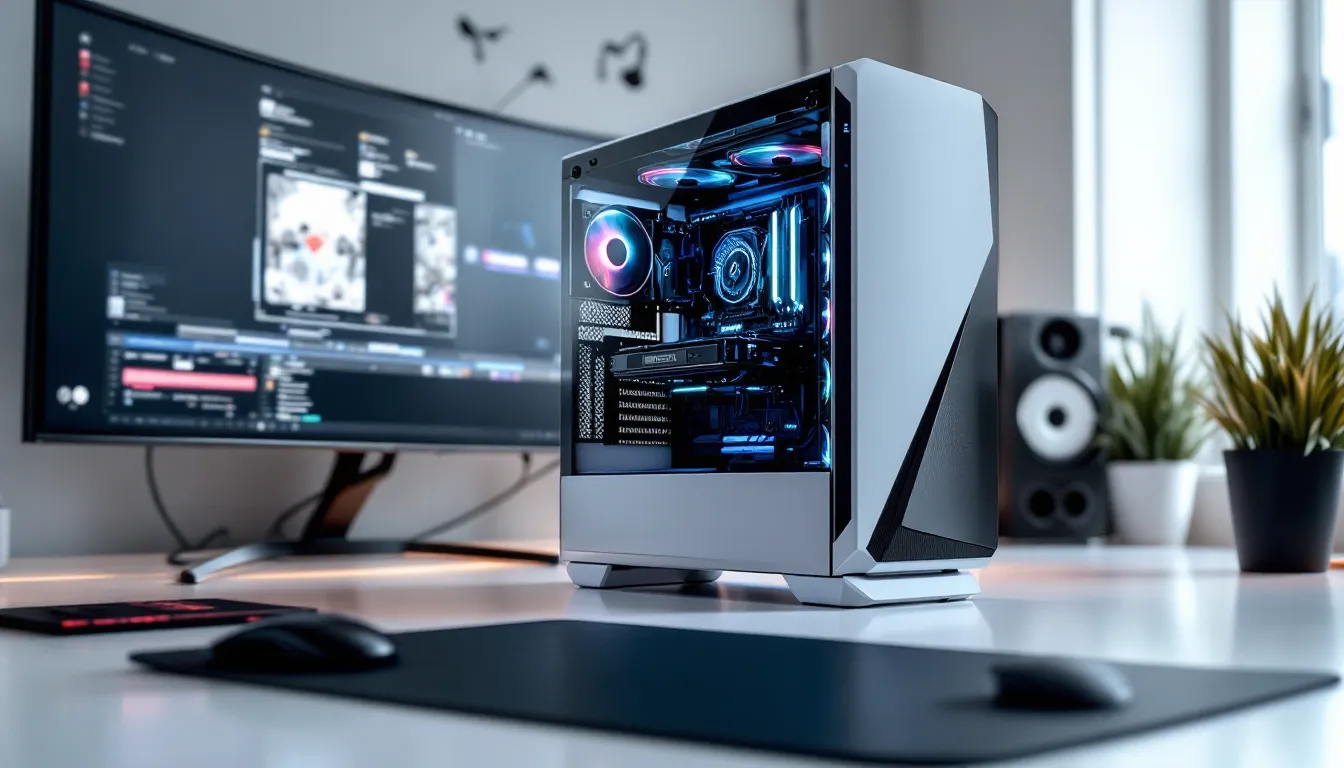

There’s something undeniably clean about a monochrome gaming rig. While RGB rainbow puke dominated the scene for years, black and white builds have surged in popularity, and it’s not hard to see why. The stark contrast, minimalist vibe, and versatility of a two-tone setup appeals to gamers who want a battle station that looks as sharp as it performs.
Building a black and white gaming PC isn’t just about slapping white components into a case and calling it a day. It requires thoughtful planning, careful component selection, and attention to detail in cable management and lighting. Done right, a monochrome build delivers a timeless aesthetic that won’t feel dated when the next trend rolls around. This guide walks through everything needed to plan, build, and maintain a black and white gaming PC in 2026, from component selection at every budget tier to RGB configuration and common pitfalls to avoid.
Key Takeaways
- A black and white gaming PC delivers timeless aesthetic appeal that resists trend cycles and photographs exceptionally well for content creators and streamers.
- Successful monochrome builds require strategic component selection with white as the primary color (60-70%) and black as accent (30-40%), plus deliberate cable management and RGB coordination.
- White cable extensions ($30-50) provide the highest return on investment for visual impact by eliminating black cables that distract from the monochrome aesthetic.
- RGB synchronization across brands remains fragmented in 2026, so either commit to a single ecosystem (Corsair or NZXT) or connect all devices to motherboard headers for unified control.
- Black and white gaming PC builds range from $800-$1,200 for budget-friendly setups to $3,800-$5,350 for premium showcases, with mid-range options at $1,200-$2,000 offering excellent performance and aesthetics.
- White components show dust and fingerprints more readily than black, requiring regular cleaning with compressed air and microfiber cloths while positioning the PC away from direct sunlight to prevent yellowing.
Why Choose a Black and White Gaming PC Build?
Timeless Aesthetic Appeal
Black and white builds age well. Unlike neon green or bright red setups that scream “2015 gaming,” monochrome rigs maintain visual relevance year after year. The high contrast between black and white creates a sharp, professional look that fits equally well in a bedroom setup or a streaming studio.
The aesthetic isn’t just about following trends, it’s about creating a cohesive visual identity for a gaming space. Black and white schemes photograph exceptionally well for content creators, and they pair seamlessly with modern desk setups and room designs. The restrained color palette also puts the focus on form and build quality rather than flashy accents.
Easier RGB Coordination and Customization
RGB lighting becomes significantly easier to manage with a black and white foundation. Instead of fighting against multiple competing colors in components, builders start with a neutral canvas. Any RGB color scheme, whether it’s subtle white LEDs, ice blue accents, or even dynamic rainbow effects, pops cleanly against the monochrome backdrop.
Most gaming peripherals and components already come in black, so sourcing parts is generally straightforward. White components have become far more common in 2026 than in previous years, with major manufacturers like ASUS, Corsair, NZXT, and Lian Li offering dedicated white versions of popular products. This expanded availability means builders aren’t forced to settle for inferior specs just to maintain the aesthetic.
Essential Components for Your Black and White Gaming PC
Best Black and White PC Cases in 2026
The case sets the tone for the entire build. In 2026, several standout options dominate the monochrome scene:
Lian Li O11 Dynamic EVO (White) remains a top choice for its excellent cable management, abundant fan mounting options, and clean tempered glass panels. The dual-chamber design keeps cable clutter hidden while showcasing components beautifully.
NZXT H7 Flow (White) offers exceptional airflow with its perforated front panel, making it ideal for high-performance builds. The case includes smart cable management channels and supports up to 10 fans.
Corsair 5000D Airflow (White) provides a more traditional layout with tool-free panels and spacious interior. It’s particularly well-suited for builders who want room to work without compromising on aesthetics.
Fractal Design Torrent (White) takes airflow seriously with dual 180mm front fans and an open front mesh design. Performance-focused builders appreciate the cooling potential without sacrificing the monochrome look.
For budget-conscious builds, the Phanteks Eclipse G360A (White) delivers solid airflow and build quality at a lower price point, though with fewer premium features.
White Motherboards: Top Picks and Compatibility
White motherboards serve as the centerpiece of any monochrome build. According to recent gaming hardware reviews, several models stand out in 2026:
ASUS ROG Strix Z790-A Gaming WiFi D4 (White) dominates the Intel platform with robust VRM, PCIe 5.0 support, and extensive RGB headers. The white PCB and heatsinks create a striking foundation.
MSI MAG B650 Tomahawk WiFi (White) offers excellent value for AMD Ryzen 7000 builders, with strong power delivery and DDR5 support at a competitive price.
ASUS Prime X670E-Pro WiFi (White) caters to high-end AMD builds with premium features, though it commands a higher price tag.
Gigabyte B760 Aorus Elite AX (White) provides a budget-friendly Intel option without compromising essential features like WiFi 6E and solid VRM cooling.
When selecting a white motherboard, verify RAM clearance with tower coolers and confirm RGB header compatibility with planned lighting ecosystems. Not all white boards offer the same connectivity options, so match I/O requirements to the intended use case.
Graphics Cards with Black and White Designs
GPU selection presents the biggest challenge in monochrome builds, most graphics cards ship in black with RGB accents. But, several manufacturers now offer white variants:
ASUS ROG Strix White Edition cards (available for RTX 4080, 4070 Ti, and 4070) feature white shrouds, backplates, and heatsink accents. These GPUs maintain the same cooling performance as their black counterparts.
Gigabyte Vision series (RTX 4090, 4080, 4070 Ti) sports silver-white aesthetics with minimalist design language. The Vision lineup emphasizes clean lines over aggressive gaming aesthetics.
Zotac AMP Extreme White editions occasionally appear for select GPU models, though availability varies by region and generation.
For builders who can’t source a white GPU or need specific models unavailable in white, GPU support brackets and vertical mounting can minimize the visual impact of a black card. Some builders also use white custom backplates or vinyl wraps, though these modifications may affect warranty coverage.
Cooling Solutions: AIO Coolers and Fans
Cooling components significantly impact the monochrome aesthetic since they occupy substantial visual real estate:
AIO Liquid Coolers:
- Corsair iCUE H150i Elite LCD (White) – 360mm radiator with customizable LCD screen, excellent for custom logos or system monitoring
- NZXT Kraken Elite 360 RGB (White) – Features a 2.36″ LCD display and Asetek pump for reliable cooling
- Lian Li Galahad II Trinity (White) – Strong performance at a competitive price with addressable RGB fans
- Arctic Liquid Freezer III (White) – Best price-to-performance ratio, though with less flashy aesthetics
Case Fans:
- Lian Li UNI FAN SL-Infinity (White) – Daisy-chainable design simplifies cable management dramatically
- Corsair iCUE QL120 (White) – Dual RGB rings create impressive lighting effects
- Thermaltake ToughFan 12 (White) – Focuses on static pressure and performance over aesthetics
Fan configuration matters: push-pull radiator setups maximize cooling, while uniform fan models create visual cohesion. Mixing fan brands often leads to RGB sync headaches and inconsistent color temperatures.
Building Your Black and White Gaming PC: Step-by-Step Process
Planning Your Color Distribution and Theme Balance
Successful monochrome builds balance black and white components deliberately rather than randomly. A common approach uses white as the primary color (60-70%) with black as accent and contrast (30-40%). This typically means:
- White case, motherboard, and GPU (if possible)
- Black or dark-tinted tempered glass
- White fans and AIO cooler
- Black cables (or white cable extensions)
- Black RAM heatspreaders or white RAM depending on preference
Alternatively, some builders invert this ratio for a darker, more subdued aesthetic. The key is maintaining intentional distribution rather than a 50/50 split, which often appears indecisive.
Components hidden behind panels or shrouds matter less, there’s no need to replace a black PSU if it won’t be visible. Focus investment on components within the main viewing chamber.
Cable Management for a Clean Monochrome Look
Cable management makes or breaks the visual impact of a monochrome build. Black cables against a white interior or white cables against black create distracting visual noise unless routed carefully.
Cable Extension Strategy:
White cable extensions for the 24-pin ATX, 8-pin EPS, and PCIe power cables cost $30-50 and dramatically improve appearance. Brands like CableMod, Asiahorse, and Lian Li Strimer Plus offer white options with or without RGB integration.
The native PSU cables remain black and hidden in the rear chamber, while only the visible portions use white extensions. This approach costs less than full custom sleeved cables while achieving similar results.
Routing Best Practices:
- Route cables along case channels and behind cable management bars
- Use velcro straps rather than zip ties for easier adjustments
- Group cables by destination (front panel I/O, storage, etc.)
- Leave slight slack rather than pulling cables taut, this prevents stress on connectors
- Reserve one cable pass-through for GPU power cables to minimize bends
For advanced aesthetics, some PC build guides recommend hiding RGB controller boxes and fan hubs in the PSU shroud or behind the motherboard tray.
RGB Lighting Configuration for Black and White Builds
Choosing the Right RGB Color Schemes
RGB selection determines whether a monochrome build looks cohesive or chaotic. Several approaches work well:
Pure White Lighting: Sets all RGB to white (typically 255, 255, 255 in RGB values) for a clean, minimalist look. This emphasizes the black and white components without adding color distraction. Adjust color temperature between cool white (bluish) and warm white (yellowish) based on room lighting.
Single Accent Color: Adds one color (commonly ice blue, violet, or cyan) to complement the monochrome theme. This creates visual interest while maintaining restraint. Avoid warm colors like red or orange, which clash with the cool aesthetic of most monochrome builds.
Monochrome Gradient: Uses white-to-gray-to-black gradients for subtle depth and dimension. This advanced technique requires precise RGB control but creates impressive results.
Dynamic Effects: Rainbow waves and color cycling can work if kept subtle. Use lower brightness (40-60%) and slower transitions to prevent the setup from looking like a nightclub.
Software and Synchronization Tips
RGB sync across multiple brands remains one of the biggest frustrations in PC building. In 2026, the ecosystem remains fragmented:
Motherboard RGB Software:
- ASUS Aura Sync
- MSI Mystic Light
- Gigabyte RGB Fusion 2.0
- ASRock Polychrome Sync
Component-Specific Software:
- Corsair iCUE (peripherals, RAM, fans, AIOs)
- NZXT CAM (cases, coolers, fans)
- Lian Li L-Connect 3 (fans, controllers)
- Razer Synapse (peripherals)
Synchronization Strategies:
-
Ecosystem Lock-In: Stick to one brand (usually Corsair or NZXT) for all RGB components. This simplifies control through a single software interface.
-
Motherboard Header Control: Connect all RGB devices to motherboard headers and control through motherboard software. This works if the motherboard has enough headers (usually 2-3 addressable RGB and 1-2 standard RGB).
-
Third-Party Integrators: Software like SignalRGB and OpenRGB attempts to unify control across brands. Results vary by component compatibility, but these tools continue improving.
-
Manual Coordination: Set each software to the same color values manually. Tedious, but guaranteed to work if synchronized control fails.
Test RGB functionality before completing cable management, troubleshooting RGB issues after cable routing is frustrating and time-consuming.
Budget Considerations: Black and White Builds at Every Price Point
Budget-Friendly Monochrome Build ($800-$1200)
Building monochrome on a budget requires strategic compromises. Prioritize visible components and accept black alternatives for hidden parts:
Core Components:
- CPU: Intel Core i5-13400F or AMD Ryzen 5 7600 ($180-220)
- GPU: RTX 4060 Ti or RX 7600 XT in black ($300-400)
- Motherboard: Gigabyte B760 Aorus Elite AX White or MSI B650 White ($180-200)
- RAM: 16GB DDR5 (Corsair Vengeance in white or black, $70-90)
- Storage: 1TB NVMe SSD ($60-80)
- Case: Phanteks Eclipse G360A White ($90-110)
- PSU: 650W 80+ Gold (black, hidden in shroud, $70-90)
- Cooling: Arctic Freezer 34 eSports (white/black variant, $35-45)
- Fans: Arctic P12 PWM (white, 5-pack, $35)
Cost-Saving Strategies:
- Accept a black GPU, it’s the most expensive component to find in white
- Skip the AIO and use an air cooler
- Use included case fans rather than premium RGB options
- Buy white cable extensions instead of custom cables
Total: $1,020-1,335 depending on GPU choice and sales
Mid-Range Black and White Gaming PC ($1200-$2000)
This tier delivers excellent performance with noticeable aesthetic upgrades:
Core Components:
- CPU: Intel Core i7-14700K or AMD Ryzen 7 7800X3D ($350-400)
- GPU: RTX 4070 Super (white variant if available, $600-650)
- Motherboard: ASUS ROG Strix Z790-A White or MSI MAG X670E White ($280-320)
- RAM: 32GB DDR5-6000 (G.Skill Trident Z5 RGB White, $140-170)
- Storage: 2TB NVMe Gen4 SSD ($130-160)
- Case: NZXT H7 Flow White or Lian Li O11 Dynamic EVO White ($140-180)
- PSU: 850W 80+ Gold modular (black, $110-140)
- Cooling: NZXT Kraken 360 RGB White or Lian Li Galahad II 360 White ($180-220)
- Fans: Lian Li UNI FAN SL120 White (9-pack for full case coverage, $120-140)
- Cable Extensions: CableMod white extensions ($40-50)
Performance Notes:
The Ryzen 7 7800X3D dominates in gaming-focused builds, particularly for competitive titles where cache matters. The i7-14700K offers better productivity performance with more cores. Based on data from hardware benchmarks, the 7800X3D delivers 5-10% higher FPS in most modern titles at 1440p.
Total: $1,930-2,430
High-End Premium Builds ($2000+)
Premium builds maximize both performance and aesthetics without compromise:
Core Components:
- CPU: Intel Core i9-14900K or AMD Ryzen 9 7950X3D ($550-700)
- GPU: RTX 4080 Super or 4090 (ASUS ROG Strix White, $1,200-1,800)
- Motherboard: ASUS ROG Maximus Z790 Hero White or ASUS Prime X670E-Pro White ($500-650)
- RAM: 32GB DDR5-6400 CL32 (G.Skill Trident Z5 Royal RGB White, $200-250)
- Storage: 4TB NVMe Gen4 SSD + 2TB secondary ($300-400)
- Case: Lian Li O11 Dynamic EVO White XL or Corsair 7000D Airflow White ($200-300)
- PSU: 1000W 80+ Platinum/Titanium modular white (Corsair RMx or similar, $200-280)
- Cooling: Corsair iCUE H170i Elite LCD White (420mm, $280-320)
- Fans: Corsair QL140/QL120 White (10-12 fans for showcase build, $250-300)
- Custom Cables: CableMod full custom white cables ($120-150)
- Extras: GPU support bracket, RGB controller, custom backplate
Total: $3,800-5,350
High-end builds often incorporate custom touches like engraved GPU backplates, cable combs, and LCD displays showing system stats. The visual impact justifies the cost for enthusiasts and content creators who showcase their builds.
Accessories and Peripherals to Complete Your Setup
Black and White Gaming Keyboards and Mice
Peripherals extend the monochrome aesthetic beyond the PC itself:
Keyboards:
- Razer Huntsman V3 Pro (White) – Optical switches, 8000Hz polling, full RGB customization
- Corsair K70 RGB Pro (White) – Cherry MX switches, aluminum frame, reliable build quality
- Keychron Q1 Pro (White variant) – Mechanical enthusiast option with hot-swap, QMK/VIA support
- Logitech G915 TKL (White) – Low-profile mechanical, wireless, premium price
Mice:
- Logitech G Pro X Superlight (White) – Wireless, 63g weight, competitive gaming standard
- Razer Viper V3 Pro (White) – 8000Hz polling, Focus Pro 30K sensor, excellent for FPS
- Finalmouse UltralightX (White) – Enthusiast option, limited availability, ultralight design
- Glorious Model O Wireless (White Matte) – Budget-friendly lightweight option
Peripherals Worth Considering:
- White headphone stands (NZXT Puck, Corsair ST100 RGB)
- White mouse pads (Razer Strider, SteelSeries QcK Heavy)
- White desk mats (extended mouse pads from Keychron, Deskr, Glorious)
For those with mini PC setups for retro gaming alongside their main rig, consider matching peripherals to maintain the monochrome theme across both systems.
Monitors and Desk Setup Coordination
Monitor bezels dramatically affect overall aesthetics. While white-framed gaming monitors remain uncommon, several options exist:
White-Bezel Monitors:
- ASUS ROG Strix XG27ACS (White) – 27″, 1440p, 180Hz, IPS, designed for matching ROG builds
- Samsung Odyssey G7 (White) – 32″, 1440p, 240Hz, curved VA panel
- LG UltraGear 27GP850 (White variant) – 27″, 1440p, 180Hz, Nano IPS
Alternative Approach:
Many builders use black monitors with thin bezels and compensate through desk accessories. A white desk, white monitor arms, and white cable management channels create cohesion without requiring specific monitor colors.
Desk Setup Elements:
- White standing desk or desktop (IKEA Karlby in white/birch works well)
- White monitor arms (Arctic Z1-3D, HUANUO, VIVO mounts available in white)
- White LED light strips or bias lighting behind monitors
- Cable management: white cable raceways, white velcro wraps
- White desk shelf/riser for monitor elevation
Common Mistakes to Avoid When Building a Black and White Gaming PC
Forcing Every Component to Match
Some builders obsess over making every screw and cable white, sacrificing performance or budget. Hidden components don’t need to match, focus on visible elements. A black PSU behind a shroud is invisible and performs identically to a white one costing $50 more.
Mismatched White Tones
Not all whites match. Pure white, cream, off-white, and gray-white exist across different manufacturers. ASUS ROG white differs slightly from NZXT white, which differs from Corsair white. Research component photos in real lighting (not promotional renders) to avoid mismatches.
RGB white also varies: cool white (bluish tint) versus warm white (yellowish tint). Set all RGB to the same color temperature to prevent clashing tones.
Neglecting Airflow for Aesthetics
Tempered glass panels and tight layouts sometimes restrict airflow. Prioritize cooling performance over looks, thermal throttling ruins gaming performance regardless of how pretty the build looks. Choose cases with mesh front panels rather than solid glass if running high-TDP components.
Skipping Cable Extensions
Black cables snaking through a white interior destroy the aesthetic instantly. Budget $30-50 for white cable extensions, they’re the highest ROI upgrade for visual impact.
Overlooking RGB Compatibility Before Purchase
Assuming all RGB components will sync leads to frustration. Verify compatibility before buying: Check if fans use 3-pin 5V addressable RGB (ARGB) or 4-pin 12V RGB, and confirm motherboard header support. Mixing standards requires adapters or separate controllers.
Poor Planning for Component Sizing
A white case, motherboard, and AIO mean nothing if the GPU doesn’t fit or the RAM blocks the cooler. Double-check:
- GPU length vs. case clearance
- CPU cooler height vs. case clearance
- RAM height vs. CPU cooler overhang
- Radiator thickness vs. fan mounting positions
Measure twice, buy once. Enthusiasts interested in display technology comparisons for their retro setups know that specs matter, the same principle applies when selecting PC components.
Underestimating Build Time
Monochrome builds with extensive cable management, RGB configuration, and troubleshooting take longer than standard builds. Allocate 4-6 hours for a first-time builder, 2-3 hours for experienced builders. Rushing leads to mistakes and damaged components.
Maintenance and Keeping Your Monochrome Build Pristine
White components show dust, fingerprints, and discoloration more readily than black. Regular maintenance preserves the aesthetic:
Dust Prevention:
- Install magnetic dust filters on all intake fans
- Maintain positive air pressure (more intake than exhaust) to minimize dust infiltration
- Position the PC off the floor if possible, carpet and low placement increase dust accumulation
- Use filtered air purifiers in the room for ambient dust reduction
Cleaning Schedule:
- Weekly: Quick exterior wipe-down with microfiber cloth
- Monthly: Interior dusting with compressed air, filter cleaning
- Quarterly: Deep clean including fan blade wiping, radiator fin cleaning, cable re-routing as needed
Cleaning Supplies:
- Microfiber cloths (avoid paper towels that scratch)
- Compressed air (electric blowers preferred over canned air for cost and environmental reasons)
- Isopropyl alcohol (70% or higher) for stubborn marks on plastic components
- Soft-bristle brushes for fan blades and tight spaces
- Anti-static wrist strap for safety during cleaning
Avoiding Yellowing:
White plastics sometimes yellow over time from UV exposure or heat. Prevent this by:
- Keeping the PC out of direct sunlight
- Ensuring adequate cooling to prevent heat buildup on plastic panels
- Choosing higher-quality components (ABS plastic yellows faster than PBT or other materials)
Fingerprint Management:
White surfaces show oils from fingerprints clearly. When adjusting components or cables, wear nitrile gloves or handle components by edges. For existing fingerprints, isopropyl alcohol on a microfiber cloth removes oils without damage.
RGB LED Longevity:
RGB LEDs have finite lifespans (typically 50,000+ hours). Running LEDs at lower brightness (50-70% instead of 100%) extends life considerably while still providing good illumination. Avoid 24/7 RGB operation if the PC sits idle, configure software to turn off lighting during inactivity.
Thermal Paste Replacement:
Replace CPU thermal paste every 2-3 years for optimal cooling performance. This maintenance window also provides a good opportunity for deep cleaning and cable management refinement.
Conclusion
Building a black and white gaming PC combines technical planning with aesthetic execution. The expanded availability of white components in 2026 makes monochrome builds more accessible than ever, though success still requires careful component selection, deliberate color distribution, and attention to details like cable management and RGB coordination.
The timeless appeal of a well-executed monochrome build justifies the extra effort. Whether working with an $800 budget or a $5,000 showcase build, the principles remain consistent: prioritize visible components, maintain intentional color balance, and never sacrifice cooling performance for looks. With proper maintenance, a black and white gaming PC delivers both strong performance and visual impact for years to come.